

Follow Support Ticket Handoffs in Power BI
Follow support tickets between teams in Power BI, distinguish routine escalation from repeated investigation, and check the records behind each handoff.
A support ticket reaches a specialist, then returns to the support team. That may be exactly how the process should work: the specialist recommends a fix, and support explains it to the customer. Another ticket comes back because the specialist needs more diagnostic information. These two returns deserve different conversations.
We will use Threadseer in Power BI to follow both tickets, check which teams recorded the steps, and see where an investigation happened twice.
Swipe or use the arrow keys to read all three tickets.
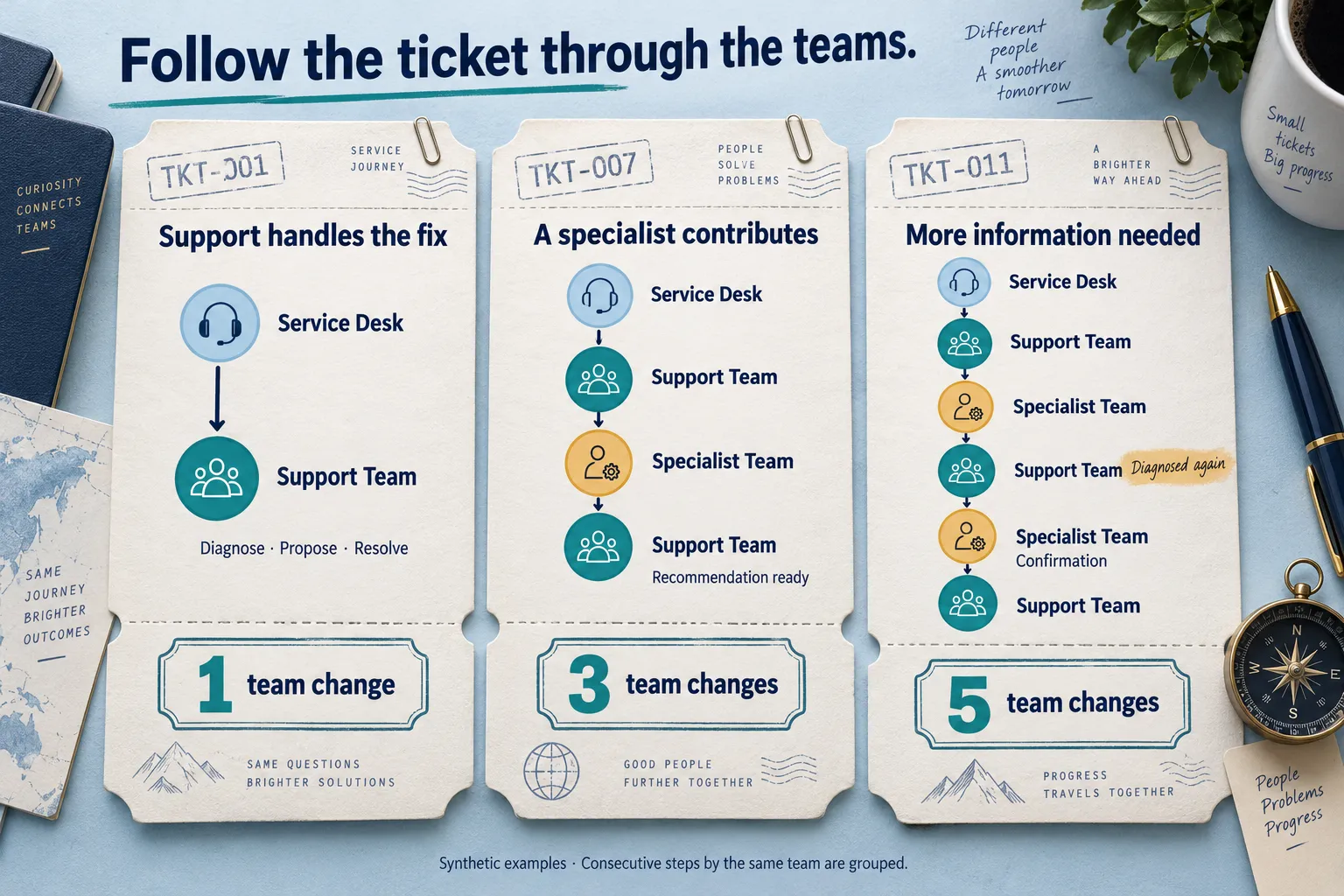
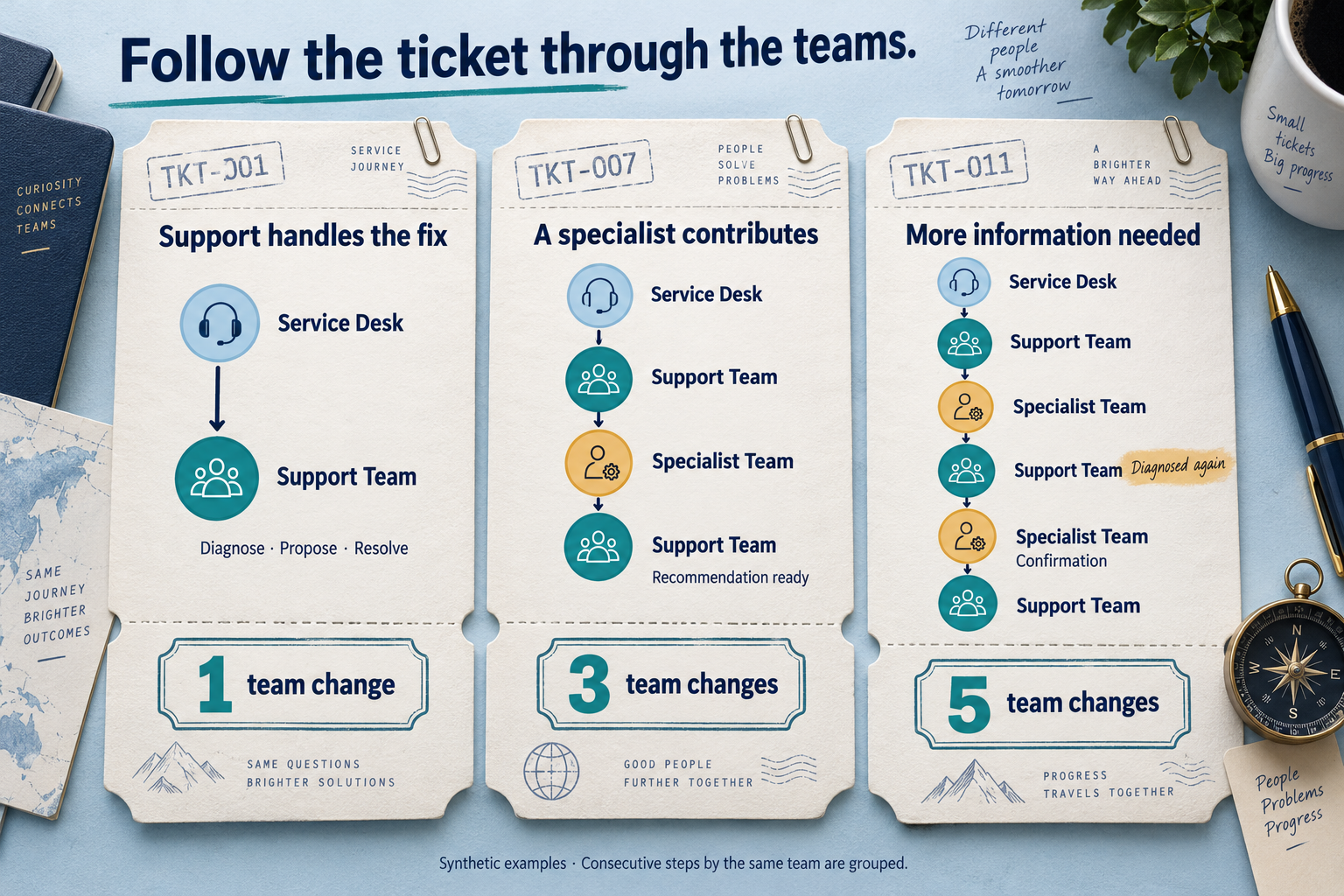
Read the three ticket journeys
- TKT-001 · Support handles the fix: Service Desk → Support Team. One team change. Support diagnoses, proposes a resolution, and resolves the ticket; different steps can stay with the same team.
- TKT-007 · A specialist contributes: Service Desk → Support Team → Specialist Team → Support Team. Three team changes. The specialist's recommendation returns to support, which informs the customer. That return is part of this route.
- TKT-011 · More information needed: Service Desk → Support Team → Specialist Team → Support Team → Specialist Team → Support Team. Five team changes. The specialist requests diagnostic information. Support records Diagnosed again before specialist confirmation and the proposed resolution.
Start with tickets, steps, and teams
Each ticket keeps the same Ticket ID from triage through resolution. Threadseer calls that ticket a case, and calls each recorded step an event. The step’s name, such as Diagnosed, is its activity.
The Resource field identifies the team recorded on that event. In this sample, it contains Service Desk, Support Team, or Specialist Team. Your source may instead record a person, a system, or a customer. Check what the field means before interpreting it as a team transfer or ticket ownership.
An observed handoff occurs when two consecutive events in the same ticket have different, nonblank Resource values. An activity change and a team change are different things: Diagnosed followed by Resolution proposed can both belong to Support Team.
Open the support-ticket example
The sample contains 81 recorded steps across 13 tickets, with three activity routes. Six tickets use routine resolution, four use specialist escalation, and three need additional investigation. One event deliberately leaves its team blank.
You need Power BI Desktop, permission to add custom visuals, and Threadseer. Community’s 25,000-row analysis limit comfortably fits this sample.
- In Power BI Desktop, choose Home → Get data → Text/CSV and open the file. Set Data Type Detection to Do not detect data types, then choose Load. This preserves the explicit UTC time zone in the sample’s timestamp text.
- Choose Get more visuals in the Visualizations menu. Search for Threadseer by Wittenauer Software LLC and choose Add. The Microsoft Marketplace listing is another starting point. Use your administrator’s approved installation path if custom visuals are restricted.
- Place Threadseer on the report canvas and give it room. A custom canvas height of 2,000 px, with View → Page view → Fit to width, makes the map and ticket details easier to read. See the first-map walkthrough for the canvas settings.
- Connect the fields below. Use Don’t summarize wherever Power BI offers it and select the actual Timestamp column rather than Date Hierarchy.
- Ticket IDThe same identifier on every step for one ticket.
- Case ID
- ActivityThe recorded step.
- Activity
- TimestampWhen that step was recorded, in UTC.
- Timestamp
- ResourceThe team recorded on that step.
- Resource
- Event IDA unique identifier for each event row.
- Event / Row ID
Leave Record note unmapped. It supplies the example’s reason for an escalation or information request; we will check it in the CSV. When the readiness screen shows 81 event rows, choose Analyze this selection.
For example, these four rows belong to the same ticket. Resource changes after the specialist’s review, then stays with Support Team for the customer update.
| Ticket ID | Activity | Timestamp (UTC) | Resource |
|---|---|---|---|
| TKT-007 | Diagnosed | Sep 21, 09:30 | Support Team |
| TKT-007 | Specialist review | Sep 21, 10:00 | Specialist Team |
| TKT-007 | Resolution proposed | Sep 21, 11:00 | Support Team |
| TKT-007 | Customer informed | Sep 21, 11:30 | Support Team |
The file stores full ISO timestamps, such as 2026-09-21T10:00:00Z. The excerpt shortens their display; all sample dates are in 2026.
About versions and the example
The screenshots use Threadseer 1.1.0.8 in a local packaged-visual test host. They do not establish which version Microsoft Marketplace currently distributes. Check the current setup guide and the version you install when following the controls below. The sample is a smaller, newly authored team-only example based on the support scenarios in our showcase; it does not relabel the showcase's portals, automation, or customers as employee teams.
See where the tickets go
Open Process Map. Set Path scope to Case coverage, Top case coverage to 100%, and Minimum cases to 1. Choose Edge labels: Frequency so the connecting lines show recorded activity transitions. Clear any selected ticket or variant before reading the whole sample.
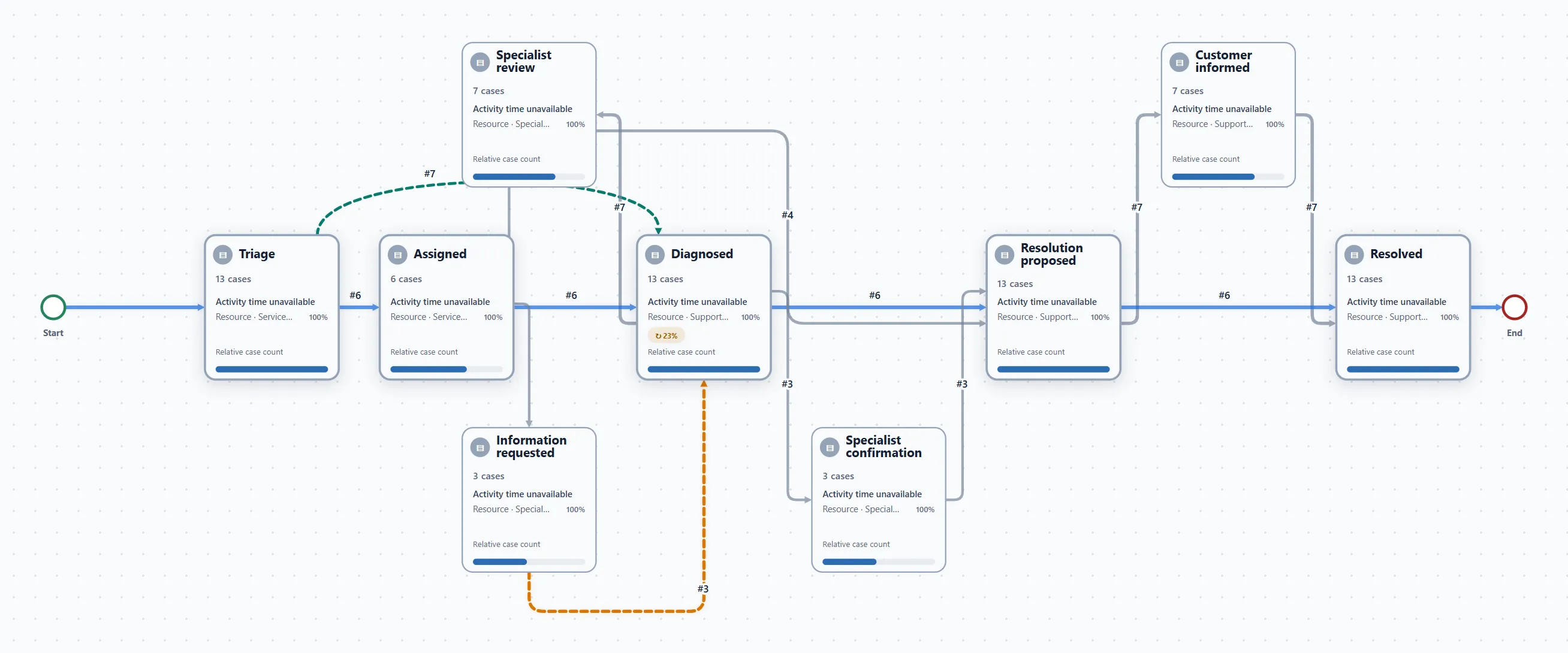
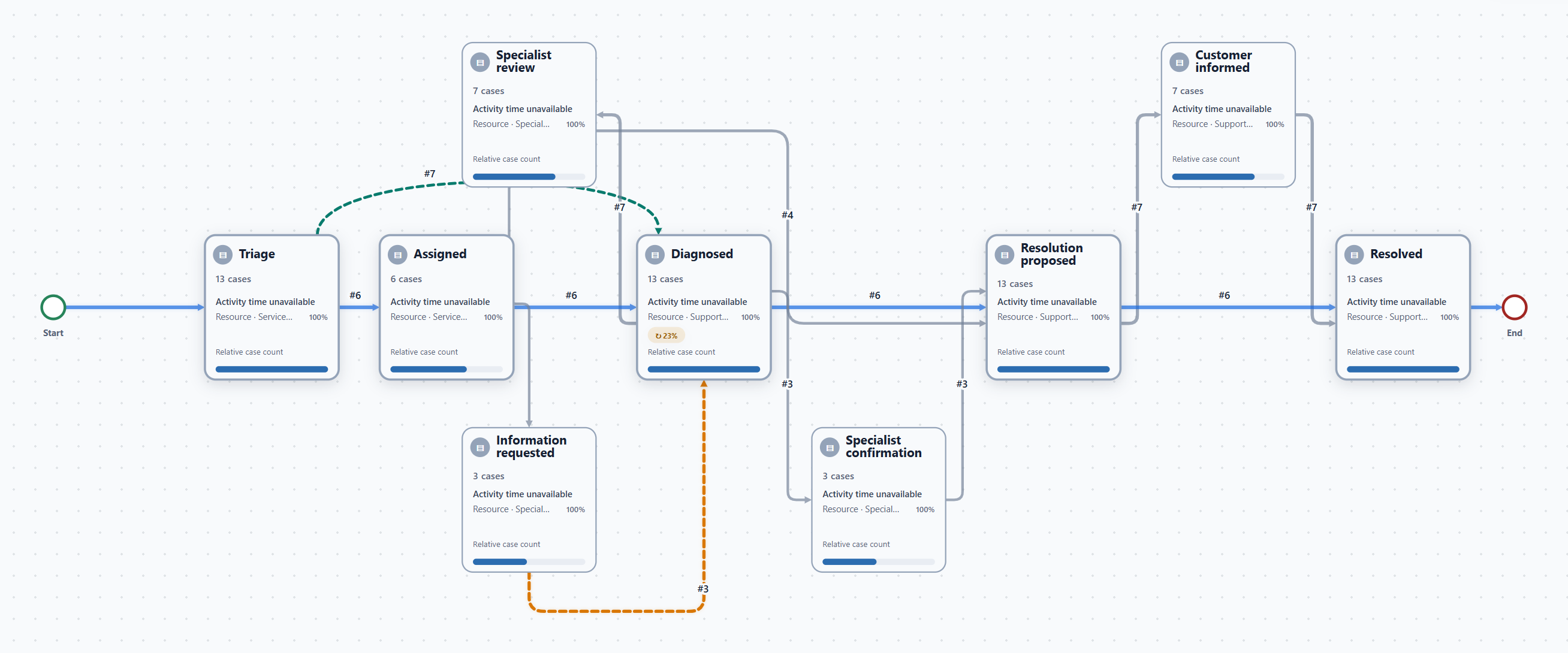
The map shows activities, so Specialist review is a step rather than a team node. Its Resource label gives supporting context. To investigate the team changes, open Improve → Resource usage.
Read the team counts correctly
With all 13 tickets included, Resource usage shows the following:
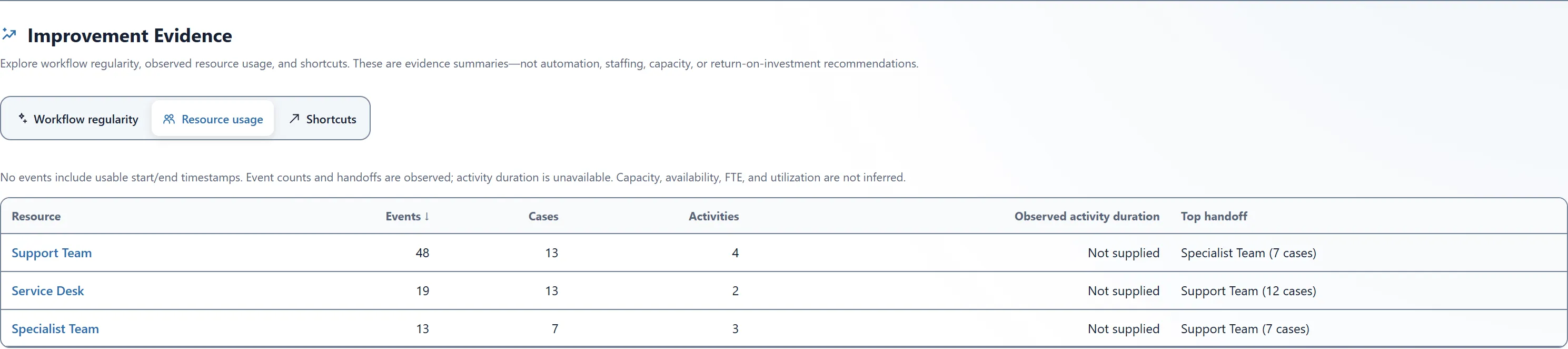
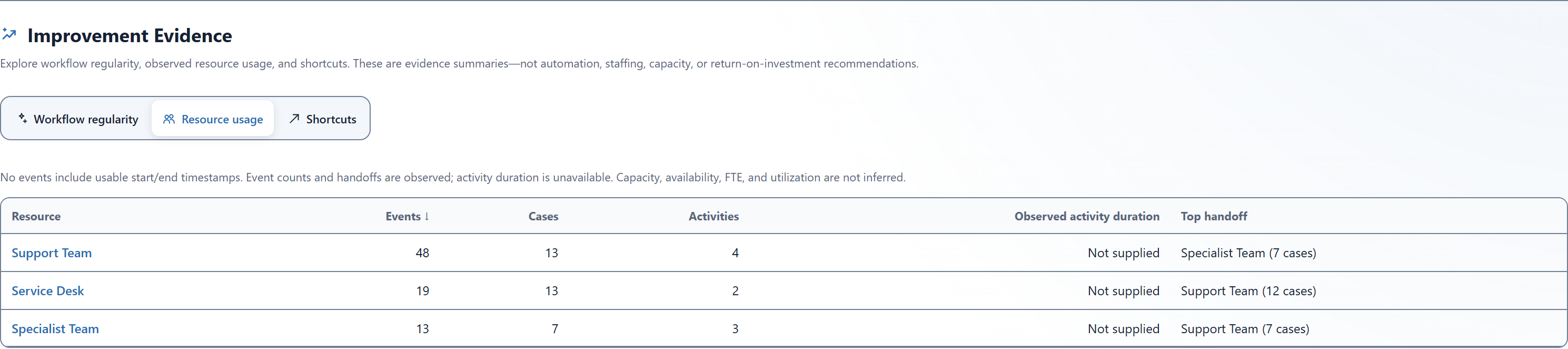
Events counts recorded steps for a resource. Cases counts distinct tickets that contain at least one of its steps. Activities counts different step names. The same ticket can appear in several teams’ case counts, so adding those counts would count tickets more than once.
Here, Specialist Team appears in seven tickets: the four specialist escalations and the three additional investigations. Support Team sends work to Specialist Team ten times across those seven tickets. The investigation tickets make that transfer twice each. The table’s Top handoff value reports seven cases, not ten occurrences.
Click Specialist Team in the Resource column to open its contributing tickets in Cases. This selects tickets containing that resource; it does not remove their other teams’ steps. Clear selection to return to the complete sample.
Trace routine resolution and escalation
In Cases, search for TKT-001 and select its Ticket ID. Its five events run from Triage and Assigned at Service Desk to Diagnosed, Resolution proposed, and Resolved at Support Team. That gives one observed handoff. The three Support Team steps stay together.
Clear selection, search for TKT-007, then select its Ticket ID. Its six events follow Triage, Diagnosed, Specialist review, Resolution proposed, Customer informed, and Resolved.
The Resource values change from Service Desk to Support Team, then to Specialist Team, and back to Support Team. That gives three observed handoffs. The final three steps all stay with Support Team.
Check TKT-007’s Record note in the CSV. Specialist review records that expert review was required for product compatibility. Resolution proposed records that the specialist’s recommendation was ready for the customer. These records explain the example’s intended escalation. None of the activity names repeats.
Follow the request for more information
Clear selection, search for TKT-011, and select it. This ticket has nine events. The specialist records Information requested, then Support Team records Diagnosed again. The six steps below show the middle of that investigation.
- DiagnosedSupport Team
- Specialist reviewSpecialist Team
- Information requestedSpecialist Team
- Diagnosed againSupport Team
- Specialist confirmationSpecialist Team
- Resolution proposedSupport Team
5 team changes In the complete ticket, Diagnosed repeats once. Specialist review and Information requested are different activities recorded by the same team.
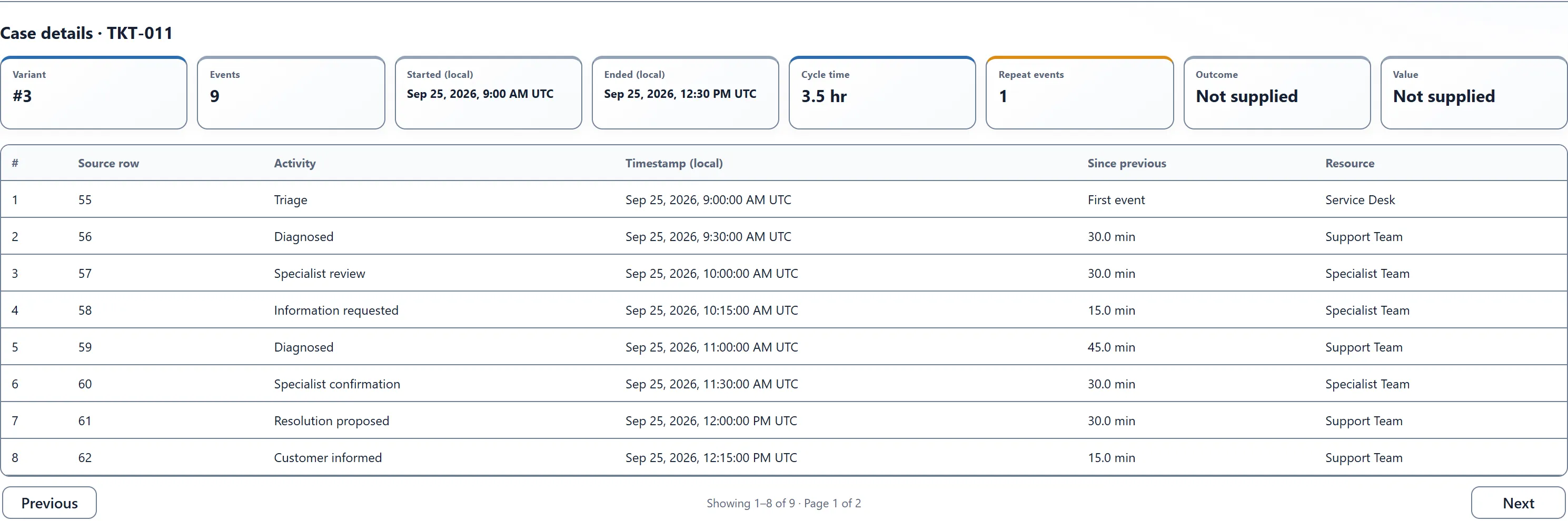
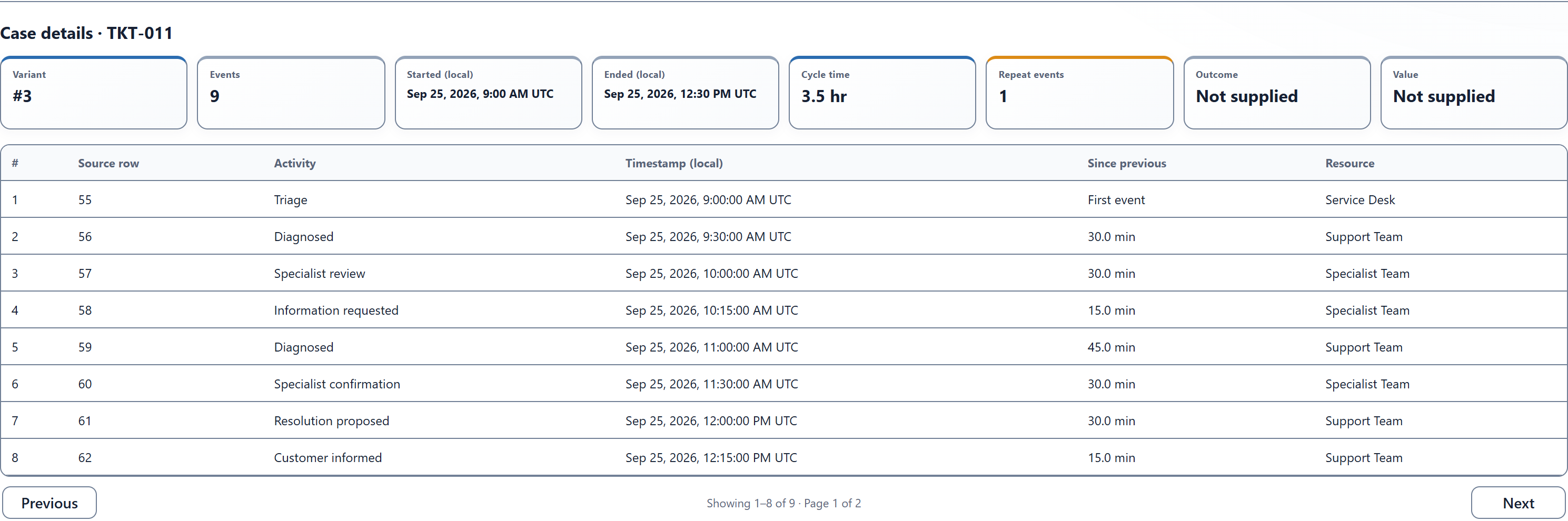
The CSV’s notes record the request for diagnostic information, its collection, and the specialist’s subsequent review. A repeated activity is what Threadseer counts as rework; the record notes provide the business context for this example. Ask whether the original diagnosis could have included that information, or whether the specialist needed to decide what to request first. The route alone does not settle that question.
Since previous measures elapsed time between recorded timestamps. This file has no End Timestamp, so those gaps do not separate time spent working from time spent waiting. The displayed 3.5-hour cycle time runs from the ticket’s first event to its last; it is not employee effort.
Check a blank team before trusting the total
TKT-006 has a recorded Diagnosed step with no Resource value. Keep that event in the history: the work happened, even though its team is unknown.
- 09:15 UTCAssignedService Desk
- 09:45 UTCDiagnosedTeam not recorded
- 10:30 UTCResolution proposedSupport Team
Assigned → Diagnosed and Diagnosed → Resolution proposed both lack one team value. Neither pair establishes a team change. Do not delete the blank event and join Service Desk directly to Support Team.
Check the sample's handoff arithmetic
The 81 events across 13 tickets form 68 adjacent event pairs. Two pairs touch the blank Resource value, leaving 66 pairs with both resources recorded. Of those, 32 change resource and 34 keep the same resource. A handoff share calculated over recorded-resource pairs is 32/66, or 48.5%; it is not 32/68. Twelve tickets have at least one observed handoff. TKT-006 has none established by its recorded pairs, which does not prove that no transfer happened.
Service Desk → Support Team occurs 12 times in 12 tickets. Support Team → Specialist Team and Specialist Team → Support Team each occur ten times in seven tickets. These are whole-sample calculations, not a separate summary table promised in the product UI.
Bring the same questions to your support process
Start with complete histories for comparable tickets. Keep the Ticket ID stable through escalation, use consistent step and team names, and preserve missing values for investigation. If your export stores one row per ticket with milestone-date columns, unpivot those dates into event rows before analyzing. The setup guide explains the required event-log shape.
Then follow a few tickets with the teams responsible for the work. Verify which returns are expected, which information prompted another investigation, and which records need better team attribution. Event counts and transfer counts can guide that discussion; they do not establish staffing needs, utilization, employee performance, or the cause of a delay.
For a timing investigation, continue with finding delays and rework. To compare complete ticket routes, use the variant walkthrough.